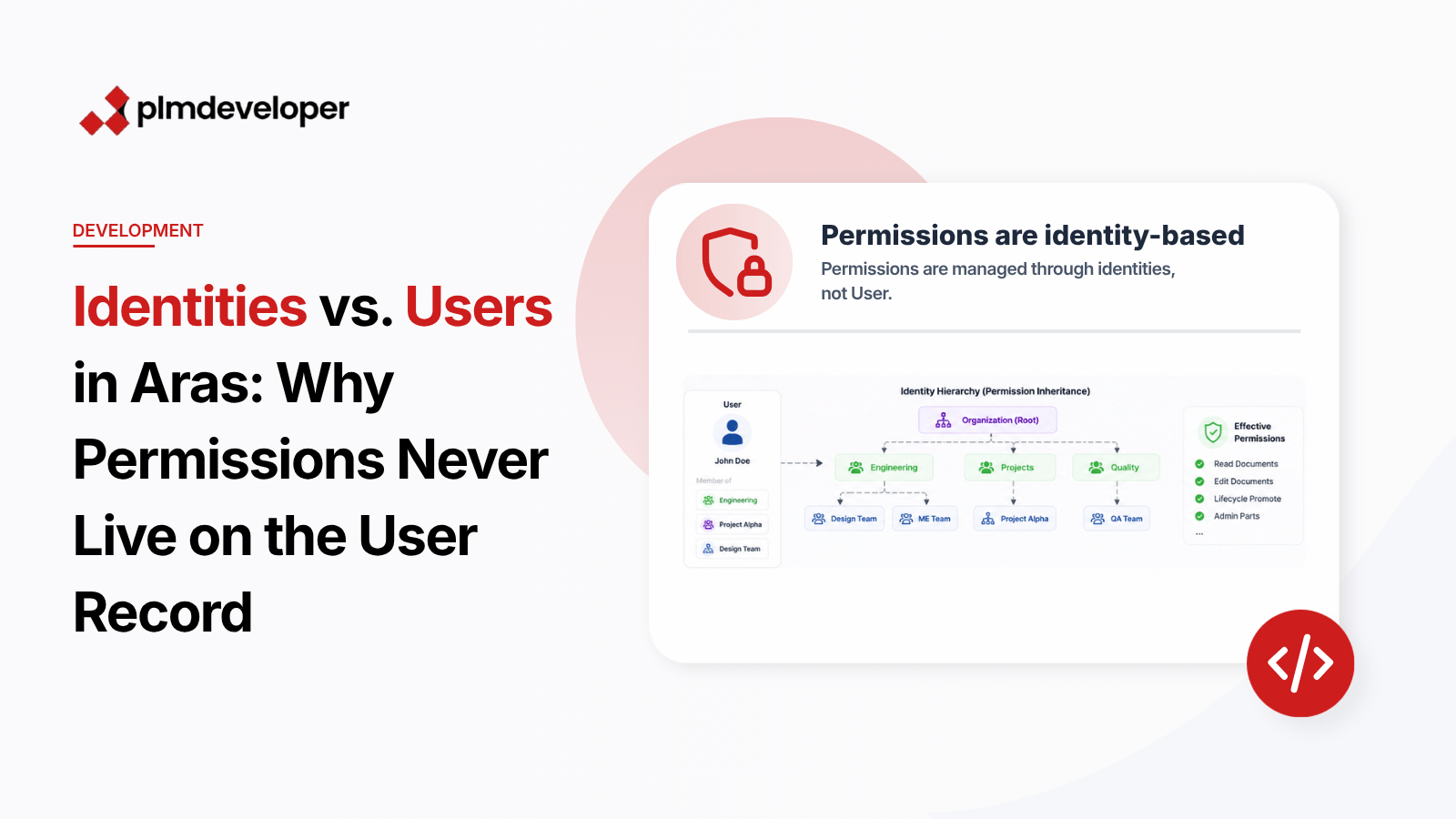
When a new team member reports they can’t access a critical document in Aras Innovator despite having the right role, the issue often traces back to a fundamental architectural principle: permissions in Aras are managed through Identities, not Users. This design choice enables flexible enterprise-scale permission management but can confuse those accustomed to user-centric access systems.
Aras Innovator’s permission model reflects modern PLM requirements where access control must adapt to complex organizational structures, temporary project teams, and delegated responsibilities. By decoupling permissions from individual user accounts, the system maintains security while allowing dynamic group-based access configurations.
Navigate to the affected User record in Aras Innovator and open the “Identities” relationship tab. This shows all groups, roles, and teams the user belongs to. A missing or incorrect membership here is the most common cause of access problems.
<AML>
  <Item type="User" action="get" select="id">
    <Relationships>
      <Item type="Identity" action="get" select="name,id"/>
    </Relationships>
  </Item>
</AML>For each Identity the User belongs to, examine its parent Identities through the “Member Of” relationship. Permissions cascade down this hierarchy, so a restriction at any level can block access.
Locate the inaccessible Document and review its “Permission” relationship. Compare these entries with the User’s Identity hierarchy to identify where access might be blocked.
<AML>
  <Item type="Document" action="get" select="id">
    <Relationships>
      <Item type="Permission" action="get" select="related_id(name),access_type"/>
    </Relationships>
  </Item>
</AML>Use the “Effective Permissions” tool (Administration > Security > Effective Permissions) to simulate what access the User should have. This helps identify discrepancies between expected and actual permissions.
Understanding Aras Innovator’s Identity-based permission model is essential for effective system administration. For deeper exploration of advanced permission scenarios, refer to the official Aras documentation on Role-Based Access Control and consider reviewing the Identity Manager module for enterprise-scale deployments.